구글 코랩(Google Colaboratory)이란?

파이썬 딥러닝을 공부하려면 비싼 그래픽카드(GPU)가 탑재된 딥러닝 전용 PC와 여러가지 소프트웨어 등 높은 수준의 개발 환경이 필요합니다.


구글에서 제공하는 클라우드 환경에서 파이썬 프로그래밍을 하는 방법을 소개합니다. 파이썬을 데스크톱이나 노트북에 따로 설치하지 않아도 되고, 초보자들이 어려워하는 복잡한 소프트웨어 환경설정도 필요하지 않습니다.

구글 코랩(Google Colaboratory)는 웹브라우저에서 바로 실행 가능한 무료 코드 에디터입니다. 파이썬 사용자들에게 널리 알려진 Jupyter 노트북 환경을 기반으로 만들었고, 사용이 편리한 장점이 있습니다.

1. 구글 코랩은 설치가 필요 없습니다.

2. 인터넷이 접속되는 컴퓨터만 있으면 사용 가능합니다.

3. 무료입니다.

4. 파이썬, 머신러닝, 딥러닝에 필요한 툴이 지원됩니다. 

물론 단점(?)도 있습니다. 사용 시간이 12시간이 넘으면 세션이 종료됩니다. 그리고, 지원되는 메모리(RAM)과 저장 장치 디스크 용량에 제한이 있습니다. 하지만, 캐글이나 국내에서 진행되는 대부분의 데이터 분석 경진대회에서도 충분한 성능을 발휘하므로 걱정하실 필요는 없어요.


구글 코랩 실행 방법

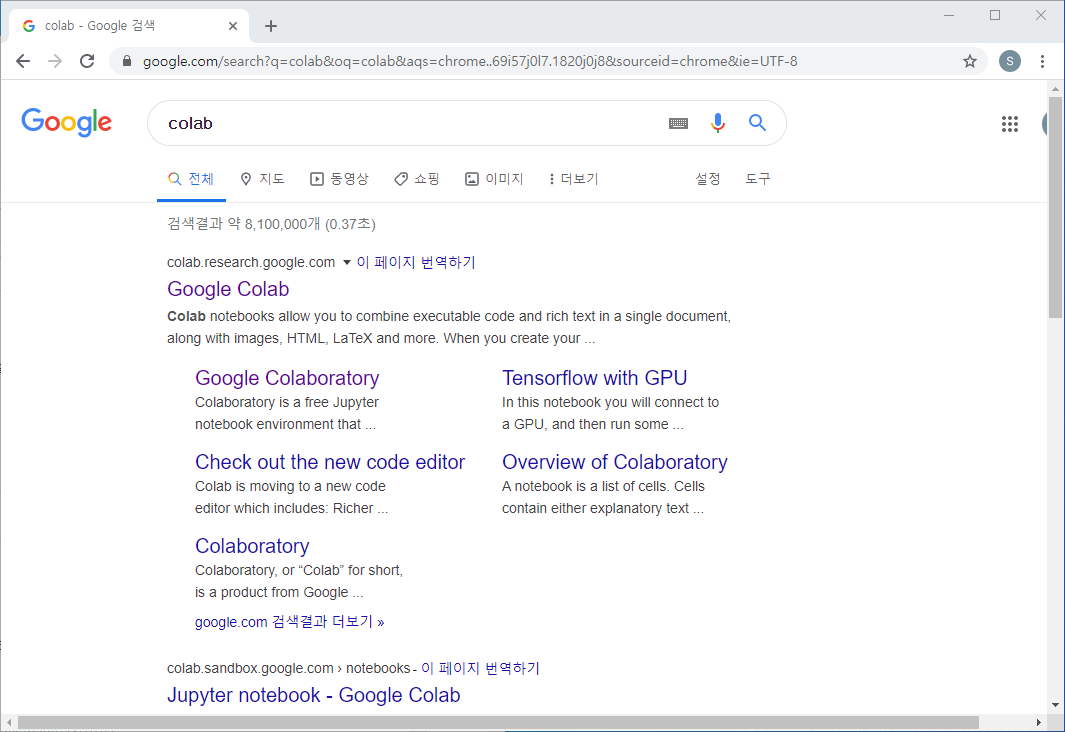
1. 웹브라우저를 열고 구글 계정에 로그인합니다. 구글 검색창에 "Colab"이라고 검색어를 입력하면, 다음과 같이 Google Colab 페이지 링크가 보입니다.


2. Google Colab 링크를 클릭하면 코랩 사이트에 접속하고, 메인 페이지가 다음과 같이 나타납니다.


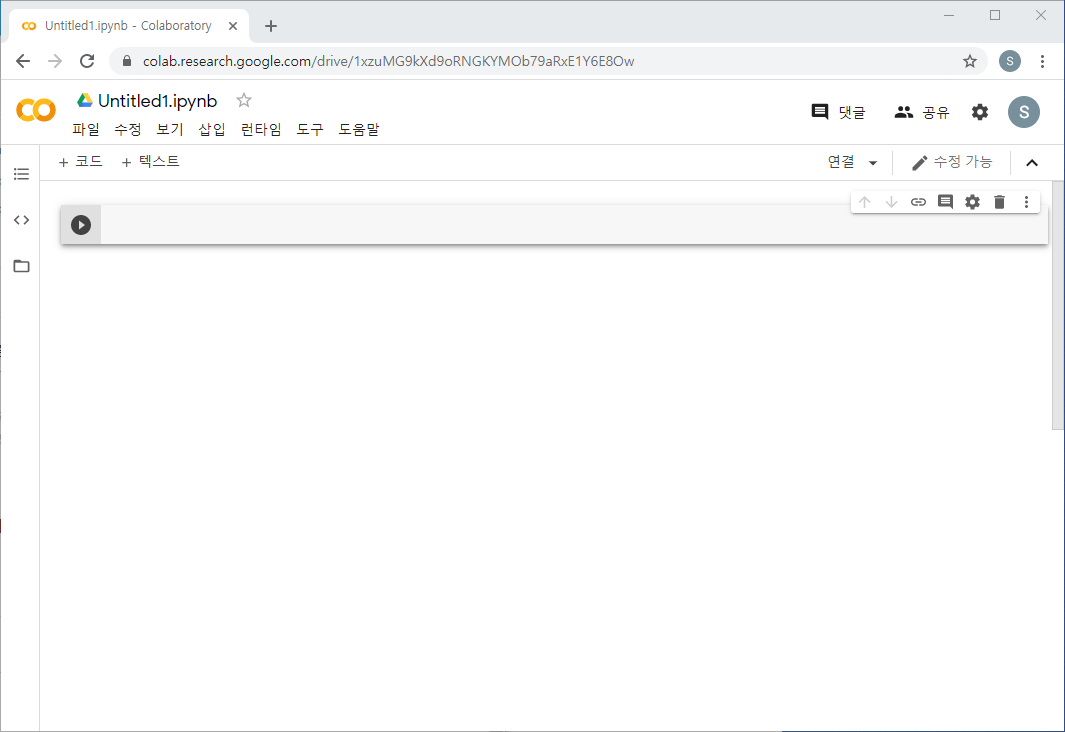
3. "Colabotory에 오신 것을 환영합니다" 링크를 클릭하면 코랩 소개 페이지가 실행됩니다. 대신에 오른쪽 아래 "새 노트"를 클릭하면 새로운 노트 파일이 만들어집니다.


이제 구글 코랩을 실행하는데 성공했습니다. 파이썬 주피터(Jupyter) 노트북 환경에 익숙한 분들은 따로 설명드리지 않아도 사용하는데 어려움이 없으실 거예요. 파이썬이 처음인 분들을 위한 설명은 다음 편에 계속 이어가겠습니다. 

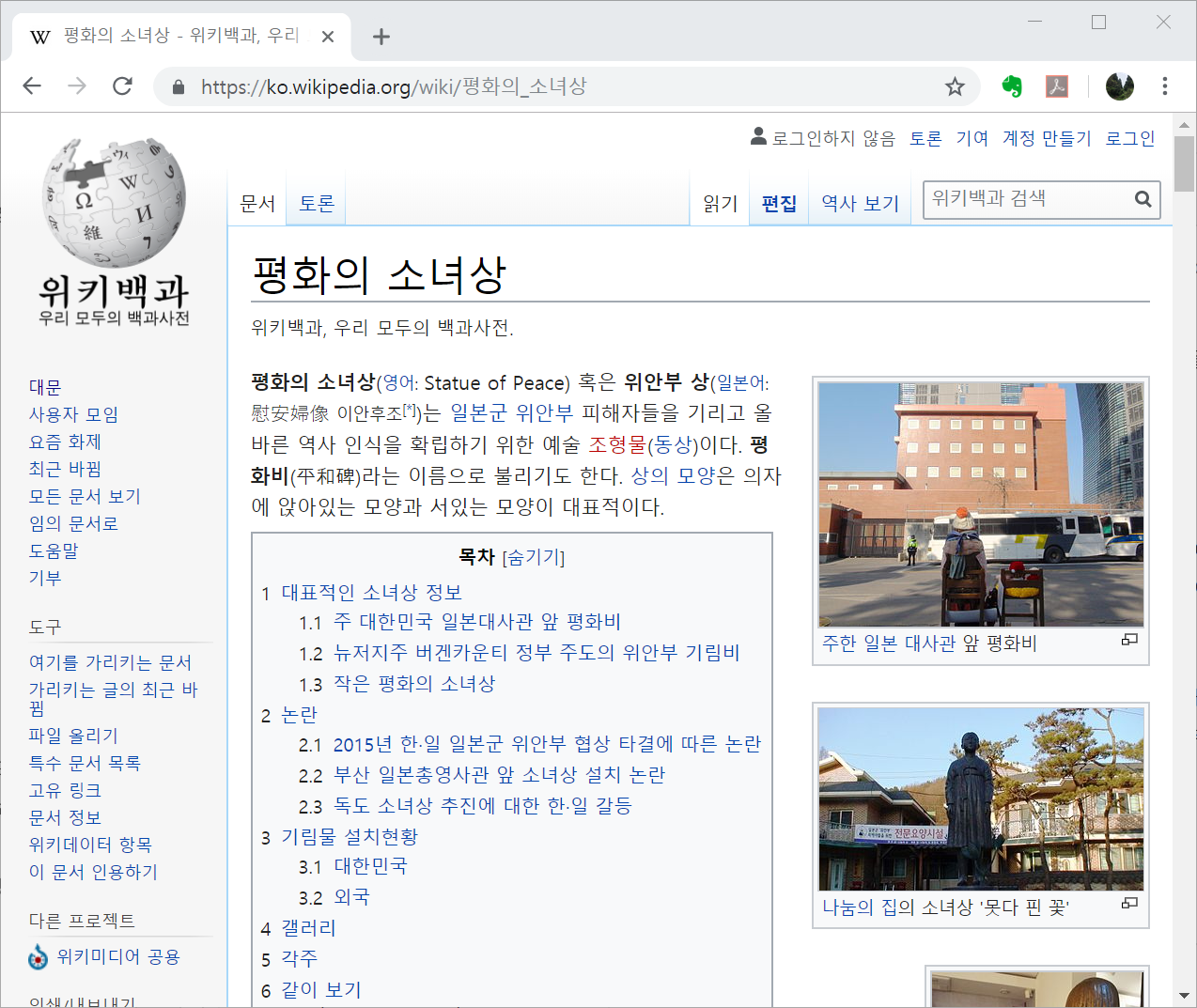
위키피디아 한국어 페이지에서 "평화의 소녀상"을 검색하면 다음과 같은 화면이 나타난다. 해당 URL을 requests 모듈을 이용하여 접속하고, html 소스를 가져온다. 


위키피디아 검색 결과 페이지


BeautifulSoup 클래스의 find( ) 메소드에 HTML 요소의 태그 이름(‘img’)을 전달하면, 해당 태그 부분을 찾아서 객체로 return 해준다. find( ) 명령은 HTML 문서에서 가장 처음으로 만나는 태그를 한 개 찾는다. 앞의 위키피디아 화면에서 가장 먼저 나오는 사진(img 태그)은 "주한 일본 대사관 앞 평화비"라는 설명이 붙어 있는 사진이다. 


"평화의 소녀상, 속초"라는 설명이 있는 사진을 나타내는 ‘img’ 태그를 선택하려면, attrs 매개변수에 해당 태그에만 해당하는 고유의 속성을 추가해야 한다. 개발자 도구를 이용하여 해당 태그를 확인할 수 있는데, alt 속성 값으로 이미지 소스 URL 값을 갖는다. 이 속성을 find( ) 메소드의 attrs 매개변수에 입력하는 방식으로, 특정 태그를 선택할 수 있다. 


import requests
from bs4 import BeautifulSoup

url = "https://ko.wikipedia.org/wiki/%ED%8F%89%ED%99%94%EC%9D%98_%EC%86%8C%EB%85%80%EC%83%81"
resp = requests.get(url)
html_src = resp.text

soup = BeautifulSoup(html_src, 'html.parser')
                    
photo_first = soup.find(name='img')
print(photo_first)
print("\n")

photo_sockcho = soup.find(name='img', attrs={'src':'//upload.wikimedia.org/wikipedia/commons/thumb/1/16/%ED%8F%89%ED%99%94%EC%9D%98%EC%86%8C%EB%85%80%EC%83%81%28Statute_of_Peace%29.jpg/220px-%ED%8F%89%ED%99%94%EC%9D%98%EC%86%8C%EB%85%80%EC%83%81%28Statute_of_Peace%29.jpg'})
print(photo_sockcho)


실행 결과는 다음과 같다. 두 개의 img 태그를 찾아서 내용을 확인할 수 있다. 이처럼, find( ) 메소드는 특정한 태그를 하나만 찾는 경우에 사용되고, 메모리 관리 측면이나 실행 시간에서 유리하다는 장점을 갖는다. 


<img alt="" class="thumbimage" data-file-height="3000" data-file-width="4000" decoding="async" height="173" src="//upload.wikimedia.org/wikipedia/commons/thumb/3/36/Japanese_Embassy_in_Seoul_and_watched_from_behind_a_bronze_statue_of_comfort_women.JPG/230px-Japanese_Embassy_in_Seoul_and_watched_from_behind_a_bronze_statue_of_comfort_women.JPG" srcset="//upload.wikimedia.org/wikipedia/commons/thumb/3/36/Japanese_Embassy_in_Seoul_and_watched_from_behind_a_bronze_statue_of_comfort_women.JPG/345px-Japanese_Embassy_in_Seoul_and_watched_from_behind_a_bronze_statue_of_comfort_women.JPG 1.5x, //upload.wikimedia.org/wikipedia/commons/thumb/3/36/Japanese_Embassy_in_Seoul_and_watched_from_behind_a_bronze_statue_of_comfort_women.JPG/460px-Japanese_Embassy_in_Seoul_and_watched_from_behind_a_bronze_statue_of_comfort_women.JPG 2x" width="230"/>


<img alt="" class="thumbimage" data-file-height="2268" data-file-width="4032" decoding="async" height="124" src="//upload.wikimedia.org/wikipedia/commons/thumb/1/16/%ED%8F%89%ED%99%94%EC%9D%98%EC%86%8C%EB%85%80%EC%83%81%28Statute_of_Peace%29.jpg/220px-%ED%8F%89%ED%99%94%EC%9D%98%EC%86%8C%EB%85%80%EC%83%81%28Statute_of_Peace%29.jpg" srcset="//upload.wikimedia.org/wikipedia/commons/thumb/1/16/%ED%8F%89%ED%99%94%EC%9D%98%EC%86%8C%EB%85%80%EC%83%81%28Statute_of_Peace%29.jpg/330px-%ED%8F%89%ED%99%94%EC%9D%98%EC%86%8C%EB%85%80%EC%83%81%28Statute_of_Peace%29.jpg 1.5x, //upload.wikimedia.org/wikipedia/commons/thumb/1/16/%ED%8F%89%ED%99%94%EC%9D%98%EC%86%8C%EB%85%80%EC%83%81%28Statute_of_Peace%29.jpg/440px-%ED%8F%89%ED%99%94%EC%9D%98%EC%86%8C%EB%85%80%EC%83%81%28Statute_of_Peace%29.jpg 2x" width="220"/>


앞서, requests 모듈을 사용하여 웹 페이지를 요청하고, 응답 객체의 text 속성을 통해 HTML 소스코드를 얻는 과정을 살펴보았다.


2019/08/01 - [웹 스크래핑 (Web Scraping)] - [5] 파이썬 웹 스크래핑 - requests 모듈, HTML 소스코드 확인


HTML 태그와 같이 요소별로 구분하여 HTML 문서를 해석하는 작업을 파싱이라고 부른다. HMTL 소스코드를 파싱(parsing)하고 원하는 정보를 추출하기 위해 BeautifulSoup 라이브러리를 사용한다. 파이썬 클래스로 정의되어 있고, 윈도 명령 프롬프트 또는 터미널 창에서 “pip install beautifulsoup4”를 입력하여 설치한다. 


BeautifulSoup 클래스는 매개변수로 전달받은 HTML 소스코드를 해석하여 BeautifulSoup 객체를 생성한다. 이 때, HTML을 파싱(해석)하는 적절한 구문 해석기(파서, parser)를 함께 입력해야 한다. 파서에는 "html.parser", "lxml" 등이 자주 사용된다. (주: XML 구문 해석을 위해서는 "xml" 파서를 따로 설치해서 사용한다.)


1) requests 모듈로 html 소스코드 얻기

import requests
from bs4 import BeautifulSoup

url = "https://en.wikipedia.org/wiki/Main_Page"
resp = requests.get(url)
print(resp)
print("\n")

html = resp.text
print(html[:300])
print("\n")


requests 모듈의 get( ) 함수의 요청에 웹 서버가 정상 응답하는 경우 코드 200의 값을 갖는다. 응답 객체의 text 속성을 html 변수에 저장하고 일부를 출력하면 html 소스코드를 확인할 수 있다. 


<Response [200]>


<!DOCTYPE html>

<html class="client-nojs" lang="en" dir="ltr">

<head>

<meta charset="UTF-8"/>

<title>Wikipedia, the free encyclopedia</title>

<script>document.documentElement.className=document.documentElement.className.replace(/(^|\s)client-nojs(\s|$)/,"$1client-js$2");RLCONF={"wgCanonicalNamespace


2) html 소스코드를 BeautifulSoup 클래스 객체로 변환하기

soup = BeautifulSoup(html, 'html.parser')
print(type(soup))
print("\n")                 
print(soup.head)
print("\n")
print(soup.body)
print("\n")


다음에는 html 문자열을 BeautifulSoup 클래스 객체로 변환한다. type( ) 함수로 soup 객체를 확인하면, BeautifulSoup 클래스 객체라는 것을 알 수 있다. 여기서 soup 객체의 head 부분을 따로 지정할 수 있는데, 다음 실행결과와 같이 <head> 태그 부분이 출력된다. 마찬가지로 <body> 태그 부분을 따로 선택할 수도 있다. 


<class 'bs4.BeautifulSoup'>


<head>

<meta charset="utf-8"/>

<title>Wikipedia, the free encyclopedia</title>

<script>document.documentElement.className=document.documentElement.className.replace(/(^|\s)client-nojs(\s|$)/,"$1client-js$2");RLCONF={"wgCanonicalNamespace":"","wgC ... <중략>...


<body class="mediawiki ltr sitedir-ltr mw-hide-empty-elt ns-0 ns-subject page-Main_Page rootpage-Main_Page skin-vector action-view">

<div class="noprint" id="mw-page-base"></div>

<div class="noprint" id="mw-head-base"></div>

<div class="mw-body" id="content" role="main">

<a id="top"></a>

<div class="mw-body-content" id="siteNotice"><!-- CentralNotice --></div>

<div class="mw-indicators mw-body-content">

</div>  

<h1 class="firstHeading" id="firstHeading" lang="en">Main Page</h1>

<div class="mw-body-content" id="bodyContent">

<div class="noprint" id="siteSub">From Wikipedia, the free encyclopedia</div>

<div id="contentSub"></div>

<div id="jump-to-nav"></div>  ... <이하 생략>...


3) BeautifulSoup 클래스 속성 확인하기

print(soup.title)
print(soup.title.name)
print(soup.title.string)


<title> 태그를 먼저 선택해서 출력하면 태그의 문자열까지 전부 확인할 수 있다. 여기서 하위 속성인 name을 이용하면, 태그명을 선택할 수 있고, string 속성을 이용하면 문자열을 따로 추출할 수도 있다.


<title>Wikipedia, the free encyclopedia</title>

title

Wikipedia, the free encyclopedia

+ Recent posts